Verify with your device's fingerprint, face, or screen lock instead of requesting another OTP.
A Passkey moves verification onto your device: the device checks your fingerprint, face, or screen lock, then confirms your identity to WeaSSO. The Passkey itself never leaves the device, which is why we recommend this method.
The interface uses two names for it: Login Passwordless when you sign in with it directly, and Passkeys when it appears as a verification step.
Why it is recommended
Section titled “Why it is recommended”The sign-in page makes two points about Passkeys:
- Smooth login without passwords — Instead of a password, log in using your face or fingerprint.
- Keep your account safe — Get better protection from online attacks like phishing.
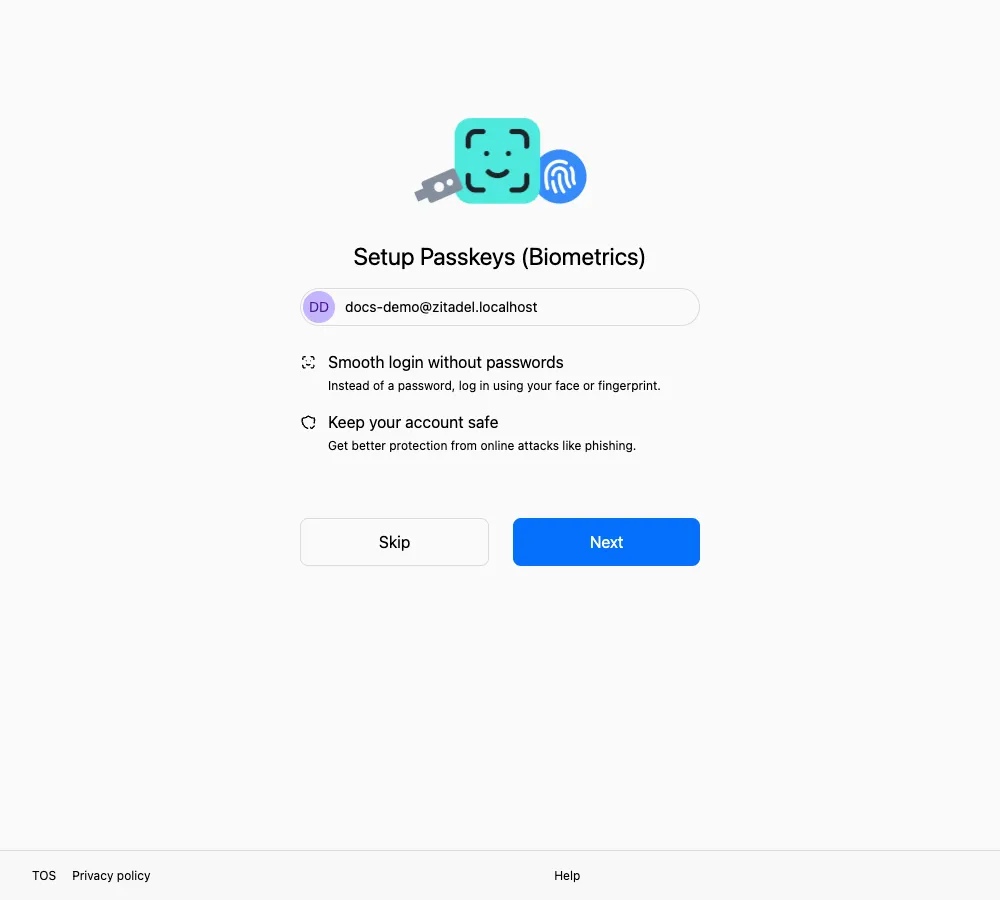
Select Next after the first OTP verification instead of postponing setup.
Set it up
Section titled “Set it up”From the “Setup Passkeys (Biometrics)” page
- Select Next.
- On the Add Passkeys page, select Add.
- Follow the browser and system prompts to confirm with your fingerprint, face, or screen lock.
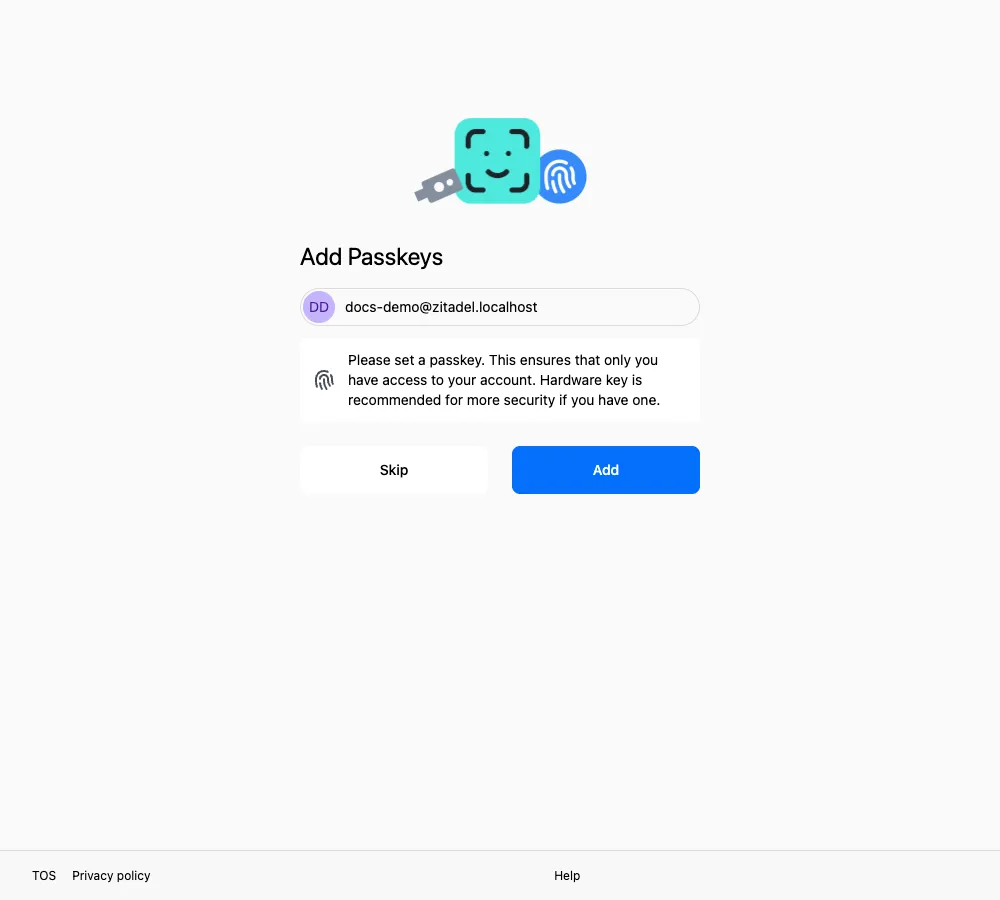
After selecting Add, your device asks for a fingerprint, face, or screen-lock confirmation.
Sign in with it
Section titled “Sign in with it”If the “Login Passwordless” page opens after your login name
- Select Login with passwordless.
- Complete the face, fingerprint, or screen lock prompt on your device.
If the page offers Login with password, it takes you to One-time password, where you enter the latest OTP issued by your administrator.
On the “Verify with your Passkey” page
- Select Verify.
- Your device asks for your fingerprint, face, or screen lock. Follow the prompt.
If the page shows a QR code instead, your Passkey is on another device. Scan the code with that device and finish there.
Common messages
Section titled “Common messages”See Messages and what they mean for the complete Passkey message reference.
If your device is not supported, the Passkeys option on the method selection page is marked Incompatible and cannot be selected.
Related pages
Section titled “Related pages”- Compare the methods: Verification methods
- When none of your devices are at hand: One-time password