Some sign-ins require a short face check after the usual verification.
Face recognition uses your camera for a brief scan. The page asks you to turn your head and open your mouth to confirm that you are present.
This is not an alternative to Passkeys or one-time passwords. You complete the usual verification first. The extra step appears when your organization, the current app, or an administrator’s policy for your account requires it. The system may skip the step if you verified recently, the app is exempt, or the service is turned off. But once the Face Verification page appears, you cannot skip it or switch methods.
Before you start
Section titled “Before you start”- Your device needs a camera, and the browser needs permission to use it
- The page must be on an HTTPS connection, otherwise it shows “Camera requires an HTTPS secure connection.”
- Find a well-lit spot and avoid backlighting
- Take off sunglasses and masks, and push any hat back so it does not shade your face
Enrolling for the first time
Section titled “Enrolling for the first time”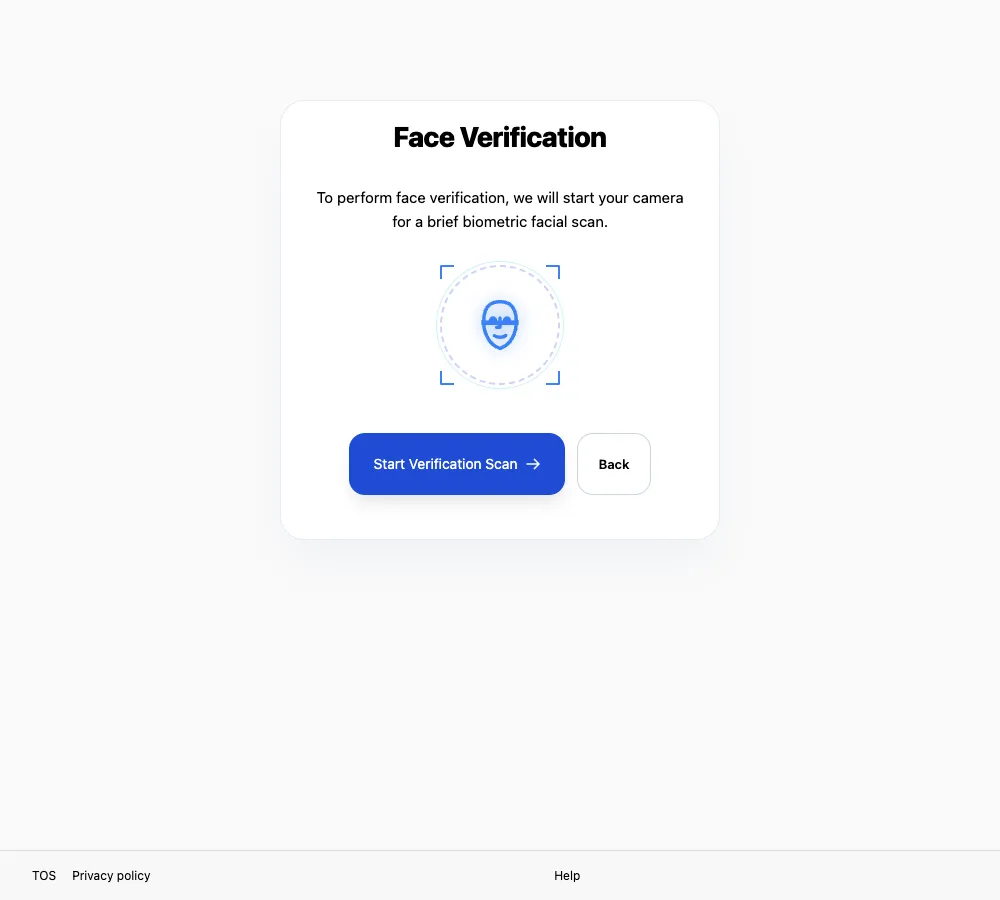
Verify that you are on your organization’s WeaSSO address before selecting Start Verification Scan.
- The Face Verification page appears. It reads “To perform face verification, we will start your camera for a brief biometric facial scan.”
- Select Start Verification Scan. To leave, select Back.
- When the browser asks for camera permission, select Allow.
- Follow the on-screen prompts to turn your head and open your mouth. When you are done, the page shows “Verification successful”.
Prompts during the scan
Section titled “Prompts during the scan”The scan gives you these prompts in turn. Just follow them:
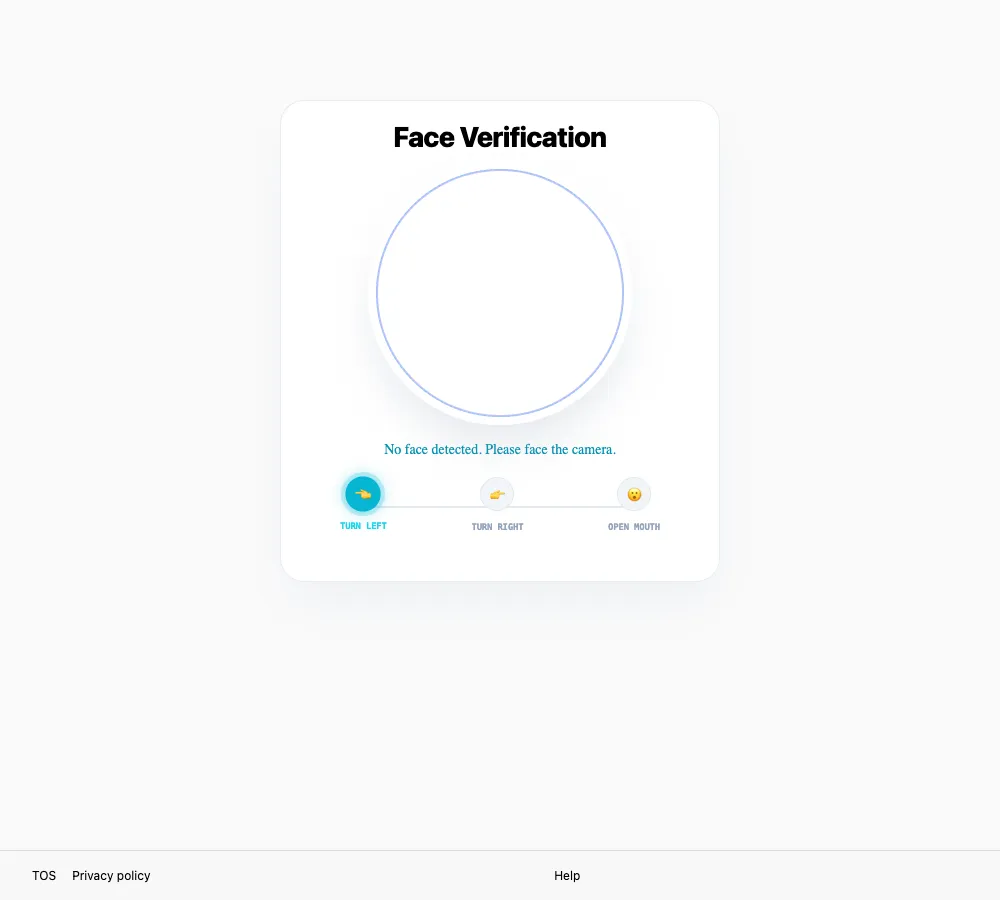
This screenshot was taken with a virtual camera, so it shows No face detected. With a real camera, the page detects your face and moves on to the movement prompts.
| Prompt | What to do |
|---|---|
| Detecting face… | Face the camera and wait |
| Hold still… | Stop moving |
| Please turn your head to the left. Please turn your head to the right. |
Turn slowly, not abruptly |
| Please open your mouth to complete the final step. | Open your mouth and hold |
| Please face the camera. | Turn back to face front |
| Looking good, capturing… / Looking good, recognizing… | Hold your position; the first is enrollment, the second is sign-in verification |
If you are too close, too far, or off-center, the page shows “Please move closer to the camera.”, “Please move away from the camera.”, or “Keep your face centered in the scanner frame.” Adjust as prompted.
Verify with it
Section titled “Verify with it”At sign-in you see the same Face Verification page. Select Start Verification Scan to start the camera and follow the prompts. Once recognized, the page shows Success and redirects automatically.
When verification fails
Section titled “When verification fails”The page shows “Face verification failed. Please ensure good lighting and face the camera directly, then retry.” Select Re-verify to try again.
If it keeps failing, check:
- Whether the light is too dim, or you are backlit by a window or lamp
- Whether your face is centered and at the right distance
- Whether anything is covering your face
- Whether another app is holding the camera, such as a video call or streaming tool
- Whether the device has a working camera; if not, switch devices or contact SSOSupport Bot
There is no option to switch to another method here. If several attempts fail, contact SSOSupport Bot.
Camera-related messages
Section titled “Camera-related messages”See Messages and what they mean for the complete camera and recognition failure message reference.
If the browser never asks for permission, it was probably denied earlier. Open the site permissions in the address bar, allow camera access, and reload the page.
Related pages
Section titled “Related pages”- Compare the methods: Verification methods