How to complete sign-in on the unified sign-in page and get back to where you started.
When you open an app that requires sign-in, your browser is redirected to the WeaSSO sign-in page. After you verify, it takes you back automatically to the page you originally opened.
What the sign-in page looks like
Section titled “What the sign-in page looks like”“Wea SSO” appears at the top, followed by “Enter your login data.” In the middle is the Login Name field, with Next at the bottom. You cannot create an account here; your administrator creates it for you.
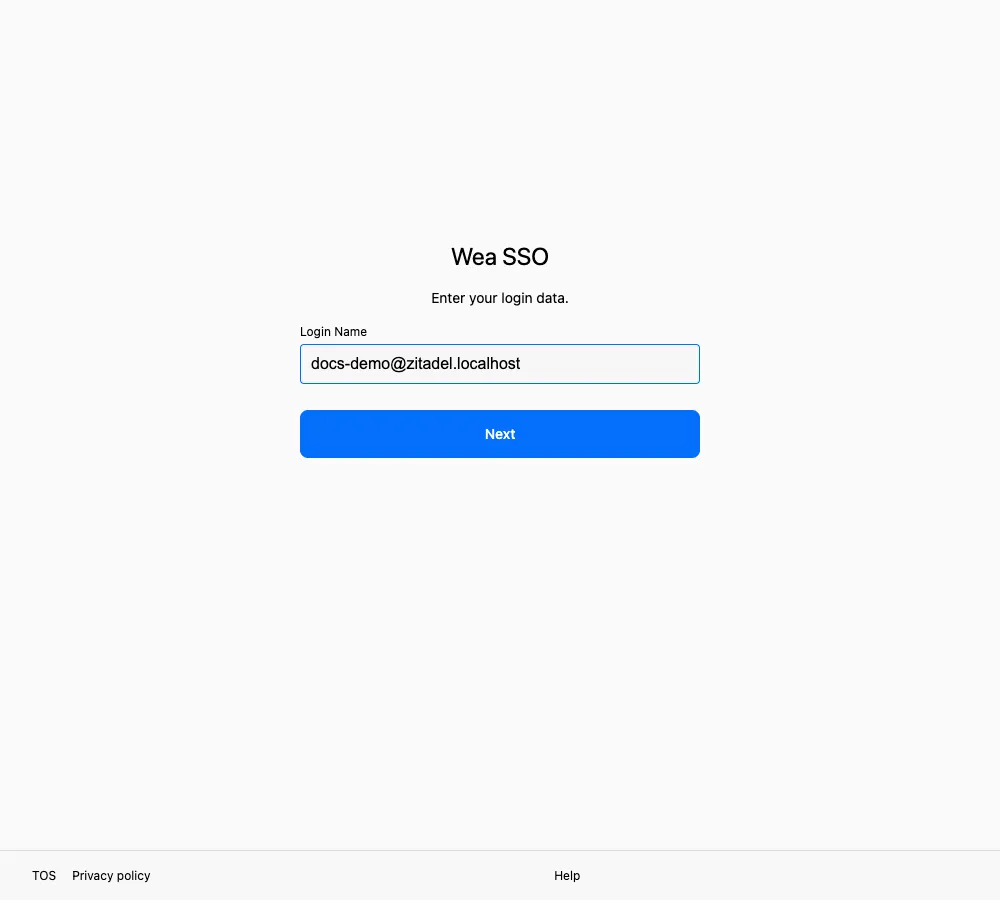
This page is only for entering an account you already have; it cannot create one.
- Check the address bar and confirm the domain is your organization’s sign-in address.
- Enter the login name your organization gave you. A work email is most common; some organizations also allow a personal email, phone number, username, or user ID.
- Select Next.
- Follow the prompts to verify. For each method, see Verification methods.
- Wait for the page to return to the app. Do not go back or refresh repeatedly while it redirects.
How to confirm it worked
Section titled “How to confirm it worked”The browser returns to the page you originally opened, signed in as you.
“User could not be found”
Section titled ““User could not be found””No account matches that login name. Check these in order:
- Look for typos; for an email, check the domain character by character
- Confirm that you are using the login name your organization gave you, which is not always a work email
- Ask SSOSupport Bot whether your account has been created yet
When you have more than one account
Section titled “When you have more than one account”If only one account is signed in, the browser may use it automatically. If you have signed in with several accounts, the account chooser appears first. To switch, see Switch accounts and sign out.
If you are not returned to the original page
Section titled “If you are not returned to the original page”Wait a few seconds first; the redirect may still be in progress. Then check whether your browser blocked it, or whether the page opened in a new tab. If you still do not get back to the page, see Troubleshooting.