Sign in using a code that @SSOBot pushes to another device you already use.
This method confirms your identity through another device you are already signed in to: @SSOBot sends a code there, and you enter it on the sign-in page.
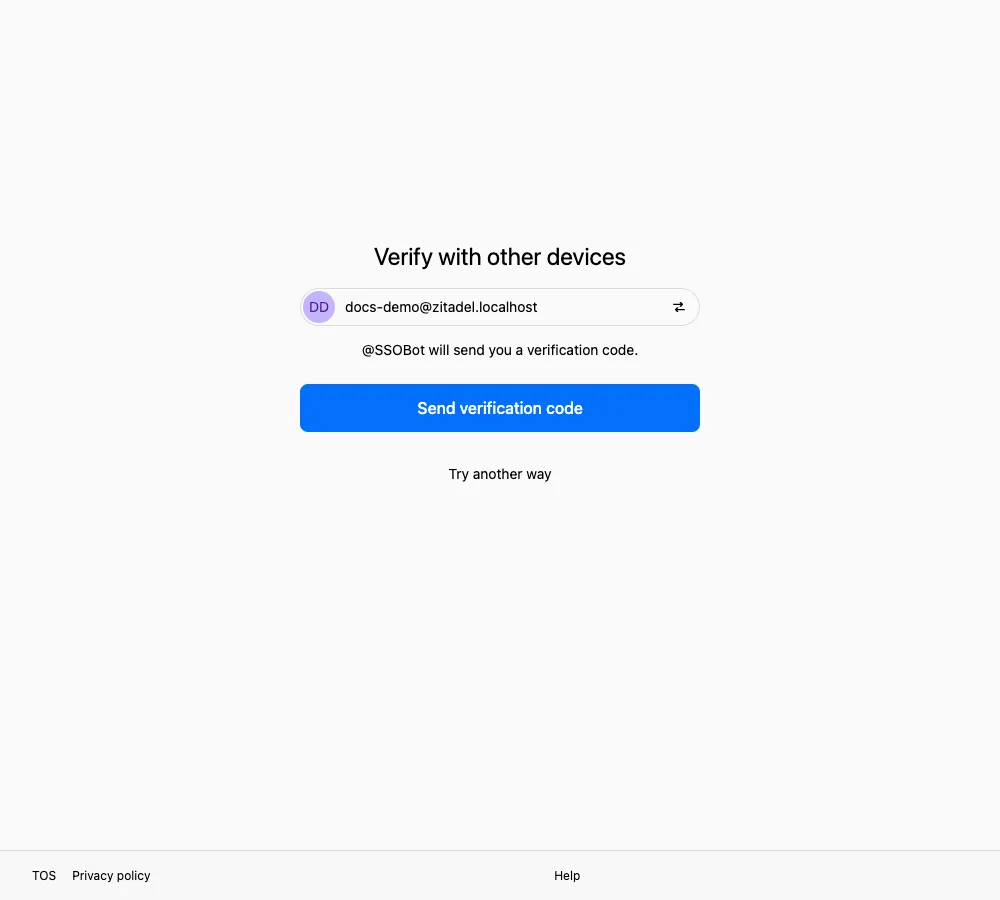
After sending, read the verification code from the @SSOBot conversation on another signed-in device.
Before you start
Section titled “Before you start”You need another device already signed in to CC or Wea, where you can read messages from @SSOBot.
- Check that the verification page is titled Verify with other devices. It shows “@SSOBot will send you a verification code.”
- Select Send verification code.
- Open your other device and find the code in your @SSOBot conversation.
- Return to the sign-in page and type it into Enter verification code.
- Select Verify.
How to confirm it worked
Section titled “How to confirm it worked”Verification completes, and you either continue signing in or reach the success page.
If the code does not arrive
Section titled “If the code does not arrive”After you select Send verification code, the button shows a one-minute countdown such as “Didn’t receive it? Retry in 00:45”. Didn’t receive it? Resend appears only after the countdown ends.
Refreshing the page does not shorten the wait. While you wait, check that:
- Your other device is online and receiving messages
- You are looking at the right conversation; the code comes from @SSOBot
- The account on that device is the one you are signing in with
If nothing arrives after the countdown, select Try another way to use a different method, or contact SSOSupport Bot.
Common messages
Section titled “Common messages”See Messages and what they mean for the complete code and device-verification message reference.
Related pages
Section titled “Related pages”- Other methods: Verification methods
- If something looks wrong: Security tips