Verification is the second step of signing in, confirming that the person at the keyboard is really you. The page opens with one of the methods available to you; which one depends on your account, the device you are using, and the app.
Methods you may meet
Section titled “Methods you may meet”| Method | What you need | When it applies |
|---|---|---|
| Passkey | A device with a fingerprint reader, face unlock, or screen lock | Your account has registered a Passkey |
| Verify with other devices | Another device already signed in to CC or Wea | You have another active device; @SSOBot sends the code |
| One-time password | The latest OTP issued by your administrator | The only first-sign-in method; also available later when no Passkey can be used |
| Sign in through OKTA | Your linked company OKTA account | OKTA confirms who you are, then you return to WeaSSO |
Some sign-ins also require face recognition
Section titled “Some sign-ins also require face recognition”Once the verification above succeeds, one more face recognition step follows if your organization, the current app, or an administrator’s policy for your account requires it.
You cannot enable or disable this yourself. The system may skip this step if you verified recently, the app is exempt, or the service is turned off. But once the Face Verification page appears, you cannot skip it or switch methods.
The setup prompt on your first sign-in
Section titled “The setup prompt on your first sign-in”After your first OTP verification, a Passkey prompt appears before you return to the app. We strongly recommend completing registration immediately instead of skipping it. See Your first sign-in and Passkey.
Switching methods during sign-in
Section titled “Switching methods during sign-in”After the first sign-in, if your account has more than one method available, the verification page shows Try another way at the bottom. The selection page then lists only the methods you can currently use.
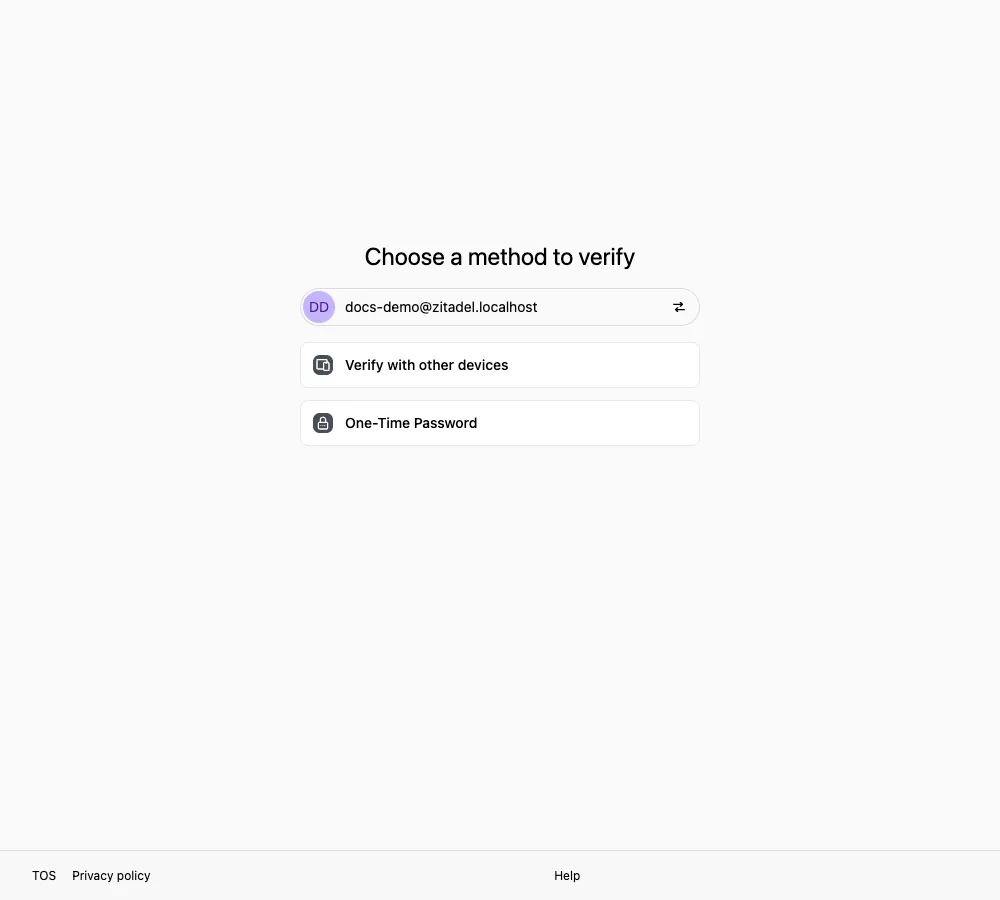
Only methods available to the current account at that moment are listed, so another user may see a different number of options.
The method selection page for later sign-ins always lists one-time password. The other methods depend on these conditions:
- Passkeys: the account has a registered Passkey
- Verify with other devices: another signed-in device is available
- OKTA: a handoff to your company’s OKTA. Your account is linked, and this app has the OKTA bridge turned on
If your device does not support Passkeys, the option is marked Incompatible and cannot be selected.
Related pages
Section titled “Related pages”- Compare where sign-in starts: Ways to sign in
- When verification keeps failing: Troubleshooting